







6.29.2012


6.22.2012
Tutorial: FLAT RATE shipping by zone/weight
Many of you have asked for it here it is.
Zone shipping - flat rate priority mail for US AND International.
*NOTES**- USPS 1st class mail to all 50 states & territories is the same cost up to 13oz no matter where you ship from. (zone 1 US)
USPS First class mail international parcel is the same price for Canada/Mexico up to 13 oz. (zone 1 international)
USPS First Class Mail parcel is the same for all remaining countries up to 44 oz (zone 2 international)
USPS Priority Mail flat rate in each size box is the same to all 50 states & us territories - some weight restrictions (zone 1 US)
USPS Priority Mail flat rate in each size box is the same to Canada/Mexico - some weight restrictions (Zone 1 international)
USPS Priority Mail Flat rate in each size box is the same to all other countries (zone2 international)
---------------------------------------------------------------------------------------------------------
Now the tutorial:
Step 1 go to to the shipping tab at the top of the page - you'll bring up this screen - choose USPS Zone shipping - if you want to make sure its set reload the page - and it'll say 'Current: USPS Zone Shipping'.

Scroll down the page a bit - you'll come to this image - click where the image says CLICK HERE - do that


(as you may have some stuff listed - click clear ALL values to start fresh)
Click ADD Default USPS Values - this is USPS 1st class ONLY for now
Approve this pop-up when it appears:

And you get this list of default USPS 1st class rates.
THIS tutorial is for shipping FLAT RATE ONLY - so the next steps from here will teach you just that!!
Note the add extra rows feature. - note the x's next to the rows - you can delete any rows you do not want or need. If you're doing flat rate ONLY - continue to the next step.

Just what the picture says - the amounts/weights are purely hypothetical for this tutorial - notice i've pared it down to 4 rates. One flat fee for up to 13oz, 1 fee for up to 16 oz, and so on.
YOU CHOOSE the weight limits based on how much you know you can get in the particular sized flat rate boxes.
YOU CHOOSE the weight limits based on how much you know you can get in the particular sized flat rate boxes.
-when you add a new row - you set the max weight for that price, the price, and the type of box/pkging, carrier and MAKE SURE TO CLICK UPDATE to save your work.
- to verify its done right click refresh rows on the left side of the table.

Go back to the shipping tab at the top of the page - look for this:

Click the US MAP you should get a blank like this:
- make sure your home state is selected in the drop down menu at the top of the section
- make sure that you're in zone 1 at the bottom and then click every state to add it to zone 1
click update map - and yours should look like this (Only your home state will be black instead of mine)

Go back to the shipping tab at the top (you'll get tired of me saying that by the time this is over)
Scroll down til you see this: (Click where it says CLICK HERE)

This is the window that comes up - make sure if you've been here before to start fresh and clear all values
If you've done your map right all 50 states will appear in the list like mine does here.
Click ADD Priority USPS default values - approve the pop up like you did for 1st class a few steps ago

this will populate a longer list: *NOTE the scroll bar on the right - the list goes to 70lb in increments
X out the ones you don't need. (you can just x out all of them and add new rows you need)
Here its not a weight range its UP TO a max weight. you choose max weight, price, you can edit all the fields here. CLICK UPDATE TO SAVE your edits.

It should look like this:
(again #s are hypothetical for tutorial only) - the priority mail prices in this table should match those in the other table you made earlier...but you can have more lines in the other table (1st class is in the other table)

If you don't ship internationally - you can stop here. Just make sure you have a weight entered for every item in your shop - checkout will add up the weights of the items and assign the shipping according to TOTAL weight.
----------------------------------------------------------------------------------------
International & flat rate shipping
Go back to the shipping tab at the top of the page:
Click on the international map
It will bring up something like this - except your's won't be filled in like mine -we'll get there.
It will bring up something like this - except your's won't be filled in like mine -we'll get there.

Make sure you're in zone 1 - Click Canada & Mexico -
Move to zone 2 (tabs at bottom under map) - click through all the other countries you ship to (if its all of them your map will look similar to mine) I DO NOT SHIP to: Egypt, Libya, Italy or North Korea - due to import restrictions applied by those countries. - if you choose to not ship to a country don't click on it. If you click on it by accident you can undo it when you refresh the map by clicking the x next to the name of the country in the list under zone 2.When you get to where you want it - (or where you think you want it) click update map. Any country you didn't click last time will be in gray. You can come back here during the next step to edit/add any countries you missed.
Now go back to the shipping tab at the top of the page
Scroll down to the bottom of the page and click where it says in this image:

That will bring up this: (Clear any values you may have entered already)
Then click where it says in this image:

See this image:

If you want and know your weight limits for packages (you should from the US part of the tutorial) you can edit the tables down to like I have done here: (Again this is purely hypothetical):
**NOTE** the two zones - and the countries listed under each (For FLAT RATE - if you have countries in zone 3 - note what they are, go back to the international map - and add those remaining countries to zone 2 - so you don't end up with randomly selected countries paying a higher rate.**

Like the image above this text says - the weights are for tutorial purposes ONLY and will probably not reflect your actual weight limits - BUT the prices ARE accurate for the type of boxes shown.
Click refresh rows - to verify your changes have been made.
If you're not sure if its right ask someone in another country to verify they see shipping in your listings - again you do need to enter a weight for each item. the cart will add up the weights of all items purchased from you and spit out a grand total weight and apply the appropriate shipping costs.
Complete the steps and you should be all set!
---Carrie - who is sorry this wasn't done sooner---
6.21.2012
Tutorial: Shop Front Manager/Feature Items
So you've noticed a new thing when you log in to your shop admin area.
That's right! You asked for it. Here's a way to feature some items in your shop. And its rearrangeable!
***NOTE***
As of the time I posted this tutorial -if you're having issues in any step of this and are using internet explorer you may have troubles - please try another browser (It is verified to work in: Firefox, Chrome and Safari but some areas in IE may not work). I will update this blurb if this changes.
------------------------------------------------------------------------------------
Here's how you use it - this is the first thing you'll see when you see your active items in shop admin (default shop admin screen)

Notice the red highlighted portion - make note of this you'll be coming back here later.
For now point yourself to shop settings (see image):

That brings up this screen - scroll about half way down the page to get this:

Now you have 3 choices on how you want your SHOP FRONT to look.
(This only applies to the front of your shop, it does not affect category or browsing within your shop)
Basic store front - DO NOTHING - just leave it as the default - that's what everyone's is set to as default
Basic + feature a few - you can choose to feature a smaller # of items 4-8 usually.Full Feature - your main shop default like you saw when you started this today is gone and you can arrange 100% of the items you choose to feature (up to 24 items).

the big RED arrow points to the drop down menu to choose type of shop feature (or not)
Read the definitions of each type to determine which you want to choose.Below that is how many items you want to feature. that is also a drop down.
Once you have this set go back to your shop admin area by clicking "ACTIVE LISTINGS" from the left side menu.
Return to this screen:
Under the images I have shown you'll see a new button "FEATURE" (its under EDIT/COPY/INACTIVATE) - this button exists on every item in your shop.
You go through and click feature on the # of items you chose from the previous step. - it will change from 'feature' to 'added' - clicking added will unfeature that item and return it to its default state.
Once you have your desired quantity click this button - see image for highlighted spot (reads "CLICK HERE") click that.


You'll be taken to a special page where you can re-arrange the items you featured to be in the order you want.
My 4 featured images are shown here:

Click on an image and drag it to whichever spot you want it in, and drop it. Then when you have your featured items arranged how you want - click save list order.
Now when you go to MYSHOP or view your shop's page you'll see something like this:
This is my shop with 4 featured listings and the rest of my listing area available. Note I changed the order of my featured items from the previous image.
-Carrie-
6.18.2012
Tutorial: Banner Manager
So you've gotten a banner made or you made one yourself - or several banners you want to change out?
We can help with that!Welcome to the Banner Manager tutorial
This will walk you through as though you do not have a banner set up yet.
Once you're in your shop admin area click the link titled "Banner Manager" on the left hand menu - as highlighted in the photo below.

Clicking Banner Manager brings up this page:

Click Select Images and pick your banner file from where its stored on your hard drive
you'll get a window like this:

This shows I've added two files to be uploaded.
Next we click UPLOAD IMAGES
The upload will progress and you'll see it say 100% DONE next to each image you upload.
You'll also note at the top of the page just above UPLOAD SHOP BANNER is a thing that says to refresh after upload. Click that and you get:

This shows the 2 different banners I uploaded. I chose the latter one this time and you can see yours once you set one banner to active - by clicking MYSHOP at the top of the page.
Here's mine:

-Carrie-
Tutorial: Uploading .csv file
Many have stated they're having trouble with the uploading of their .csv file from etsy or other sites.
This is a very simple tutorial/walk through of how to find these in your shop.
When in your shop click "Upload products"
That will bring up this screen:

Click: Upload file: choose the .csv file you downloaded from etsy from wherever it is on your hard drive.
Then click the 2nd button - upload csv products.
The page will refresh and you'll get the appearance of being back on the same page...

This time click the underlined "HERE" at the top of the page.
That brings up your inactive uploaded products window:

If you've done the steps from part 1 & 2 before - you probably have a TON of inactive products - many which are duplicates. To save yourself headache & hassle - click the CLEAR all csv products - and start this tutorial over again. That way you have only 1 set of your uploaded items. Which you can then edit and publish.
Just remember you do have to go through each listing to edit categories & such.
If you have any other questions about uploading .csv files just ask one of us on LIVE HELP or email carrie@craftcafe.co (evenings) or service@craftcafe.co (days)
-Carrie-Overview - How to Add Coupons
This image provides an overview of what to do and what you can't do with the coupons section of our site.

Here's an update: Coupons are still not 100% done but its closer to being done.
Explanation of coupon types:
Whole Shop: this is a code you can set - to give different discounts to different groups of people - but it applies to the whole shop. You can choose % off or $ off. So if you want to give $5 to your friends - you can give them one code, and you want to give 40% off to your fans - you give them another code.
For this type of code you create the code & share the code. The customer applies the code at checkout and its off their whole order from your entire shop. Once you create the code you DO NOT have to apply it to listings. ONLY the individual product discounts must be applied to individual listings.
For this type of code you create the code & share the code. The customer applies the code at checkout and its off their whole order from your entire shop. Once you create the code you DO NOT have to apply it to listings. ONLY the individual product discounts must be applied to individual listings.
Individual product discount: this is like putting certain items on sale to EVERYONE. That is every item you have a product discount on - shows as on sale to everyone who looks at that item in your shop. This can lead to more spur of the moment purchases.***** IF You choose this type and want to apply it to some of your items, YOU MUST go into the products you want it to apply to, EDIT the products (2nd to last item in the edit product area) pick the discount you wish to apply and then click UPDATE & PUBLISH on your item to make sure it applies to your item. You have to do this manually at this time for each item you wish to add the discount to (and remove if you want to remove it early). Sorry there's no way to mass apply discounts yet.
**NOTE** there are plans for a 3rd type but I don't have full details yet. Most likely this will be an individual product discount - but that you give customers to enter at checkout (instead of everyone seeing an item on sale). (per discussions with our programmer).
**NOTE** there are plans for a 3rd type but I don't have full details yet. Most likely this will be an individual product discount - but that you give customers to enter at checkout (instead of everyone seeing an item on sale). (per discussions with our programmer).
This is just a temporary answer - as soon as the coupon area is 100% done I will complete a full tutorial.
-carrie-
6.17.2012
Tutorial: Product Options & Variants
Many sellers offer products that can be customized to their customer's individual liking without needing to list a ton of separate items.
Using Craft Cafe's product options & variants section will help you the seller customize your listings to give your buyers the most product choices with the least amount of work.
Step 1 - point your browser to here: https://craftcafe.co/account/shop/variant.php
you'll get this screen:

Step 2 - You'll need to name your option(s). This tutorial shows me adding product options for my items - I do jewelry, photography and digital art. So your option names will differ from mine (or may be the same in some cases).
Make sure you click the ADD+ button once for each type of option you offer. [note at this time you can only pick one option type per listing]

Like the photo shows once you get all your option categories listed click the link at the top to go to the product values page - shown here:

Description can be anything or you can leave it blank, examples: if you have fragrances you can give a description of each fragrance here or if its a t-shirt or skirt size you can give those details here.

Now when you get all your various options filled with variants and all are saved you can go in and edit an item and on the very last item of edit item or create new item page is the product option selection box.
Depending on your item click the drop down and select the option you have that applies to that item and finish your listing.
Depending on your item click the drop down and select the option you have that applies to that item and finish your listing.
*Note if you have a special product option like higher end fragrances or something create a separate longer list for ones that include BOTH basic and higher end options - since at this time there isn't a way to add two options per listing yet.
-carrie-
Tutorial: Adding Your Social Media Links
Some of you have expressed difficulty in adding your social media links this simple tutorial will show you how
First point your browser here: https://craftcafe.co/account/shop/account.php
First point your browser here: https://craftcafe.co/account/shop/account.php
About 1/2 way down the page you'll get this - and I've highlighted the area for adding your social media links in red.

Type in your first link (Links shown here are for my links - use your own for your social media links):
See here:
See here:

And click ADD+ (brings up this):

Repeat as often as needed for however many links you wish to post:
Here is my completed list - this shows proper formatting for links as well.
If you've added an item and want to change the name or fix a link - REFRESH the page (ctrl+R - to reload) then it'll show the list in alphabetical order and give you the option to edit (UPDATE) or delete (X) your links.
They appear in alphabetical order - this is the only option - you can't arrange them to suit your preferences sorry:
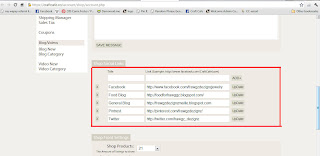
They appear in alphabetical order - this is the only option - you can't arrange them to suit your preferences sorry:

That's it.
-Carrie-
-Carrie-
Subscribe to:
Posts (Atom)